Hardware at work (home):
CPU= INTEL Core2duo (I7 gen 3)
Mem. DDR3= 4G (8G)
Dedicated Graphic card= none
System:
debian netinstall + KDE desktop
Preparation
Download from surgeforge.net:
- sweethome3d 64bit;
- Furniture Library Editor;
- optional Furniture Library Editor with ID;
- Texture Library Editor;
- Huge File Cleaner;
I Installation
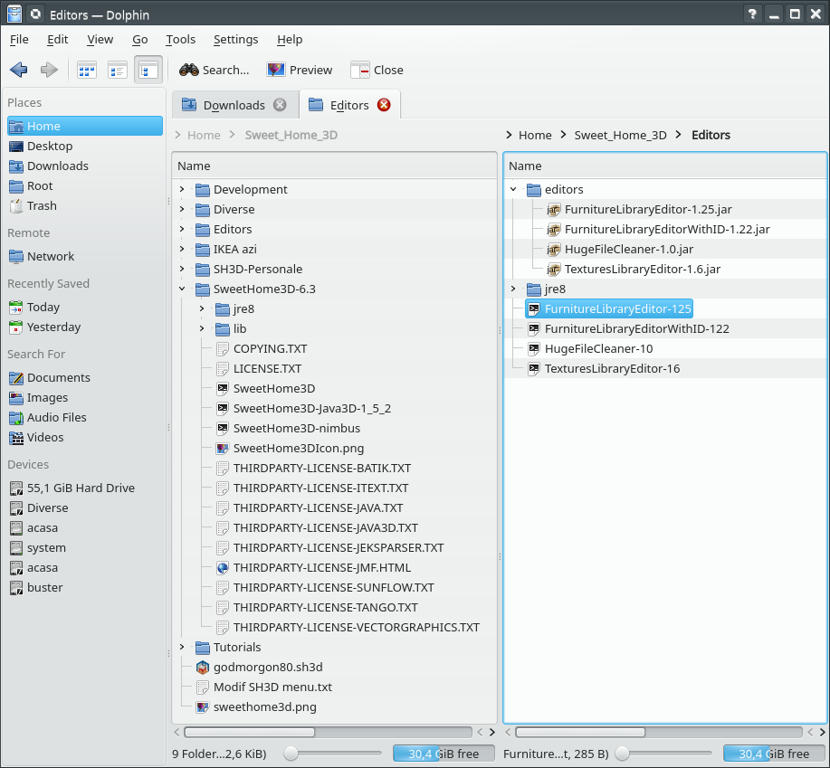
1. Make a new folder in user home (or whatever) name „Sweet Home”(or whatever) :
1.1 Extract in it SweetHome3D-6.3-linux-x64.tgz; You will have a new folder „SweetHome3D-6.3”;
1.1.1 In this new folder double click on SweetHome3D file and choose „Execute”; Will show up a new SH3D project;
1.1.2 Go to „settings” and modify something there useful for You (like unit dimensions, wall thickness, You name it);
This action will create in Your home the hidden folder „ .eteks” and other sub folders;
Now You have a basic working SH3D.
2. In the „Sweet Home” folder create a new folder name “Editors”;
2.1 Go to “Editors” and create also a new folder name “editors”;
2.2 Move the 3(4) jar files of editors from Downloads to Editors/editors;
2.3 Open SweetHome3D-6.3 and copy jre8 folder to Editors;
2.4 Create a separate text file for every editor You want to launch in Editor folder with this text inside accordingly with individual jar file like this:
#!/bin/sh
# Retrieve Furniture Library Editor directory
PROGRAM=`readlink "$0"`
if [ "$PROGRAM" = "" ];
 then
PROGRAM=$0
fi
PROGRAM_DIR=`dirname "$PROGRAM"`
# Run Furniture Library Editor
exec "$PROGRAM_DIR"/jre8/bin/java -jar "$PROGRAM_DIR"/editors/FurnitureLibraryEditor-1.25.jar
and save it with corresponding name;
Make it executable.
Verify if work.
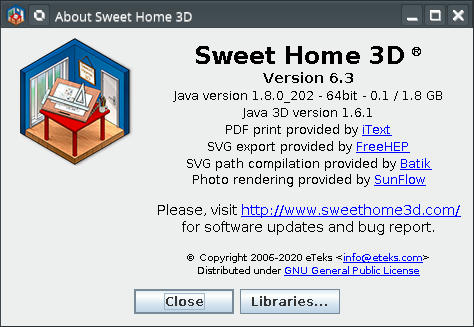
Verify also throw Help→About or similar and You could see this:
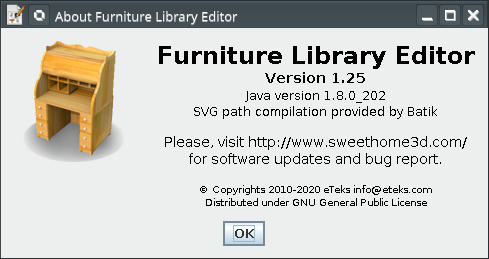
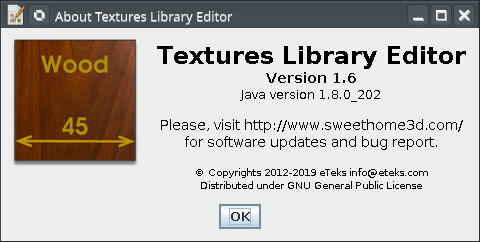
If all this work fine until now You could go to next chapter.
II Customization
1. Set the defaults for sh3d files:
1.1 Right-click on start button and choose Edit Application…
1.2 Under Graphics menu add a new entry like this:
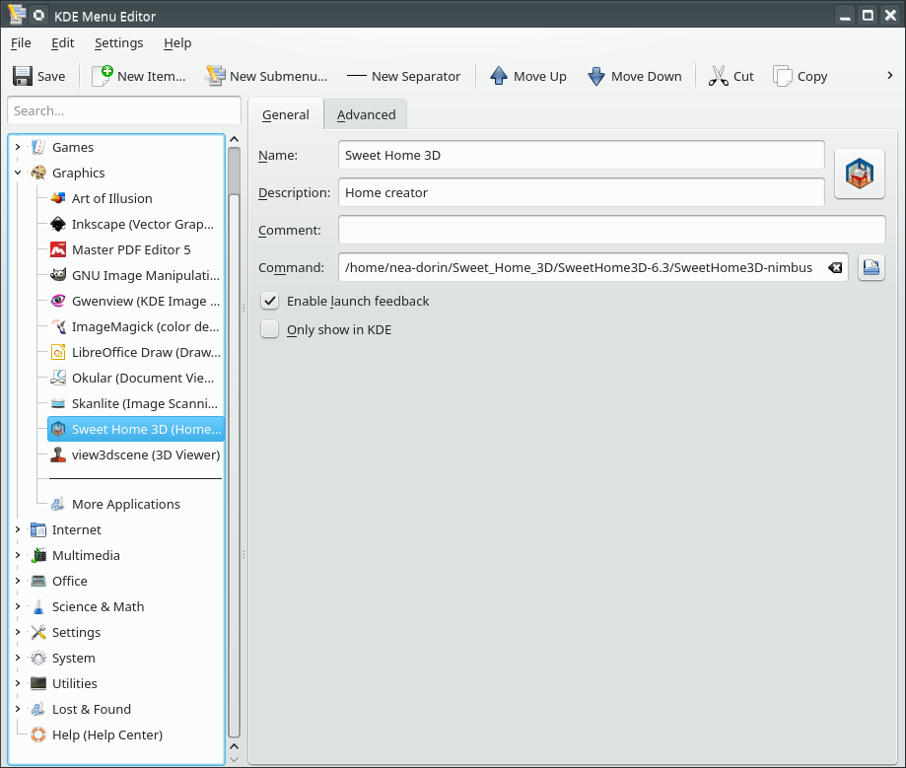
Save and close.
2. Click on start and choose System Settings→Applications→File Associations
2.2 On applications +Add… , insert a name (sweethome3d)
2.3 On Edit set the Filename patterns, icon, description and the applications
2.4 For application and icon You have to navigate to
/home/user-name/Sweet Home/SweetHome3D-6.3/SweetHome3D
/home/user-name/Sweet Home/SweetHome3D-6.3/SweetHome3DIcon.png
2.5 Sommeting like this:
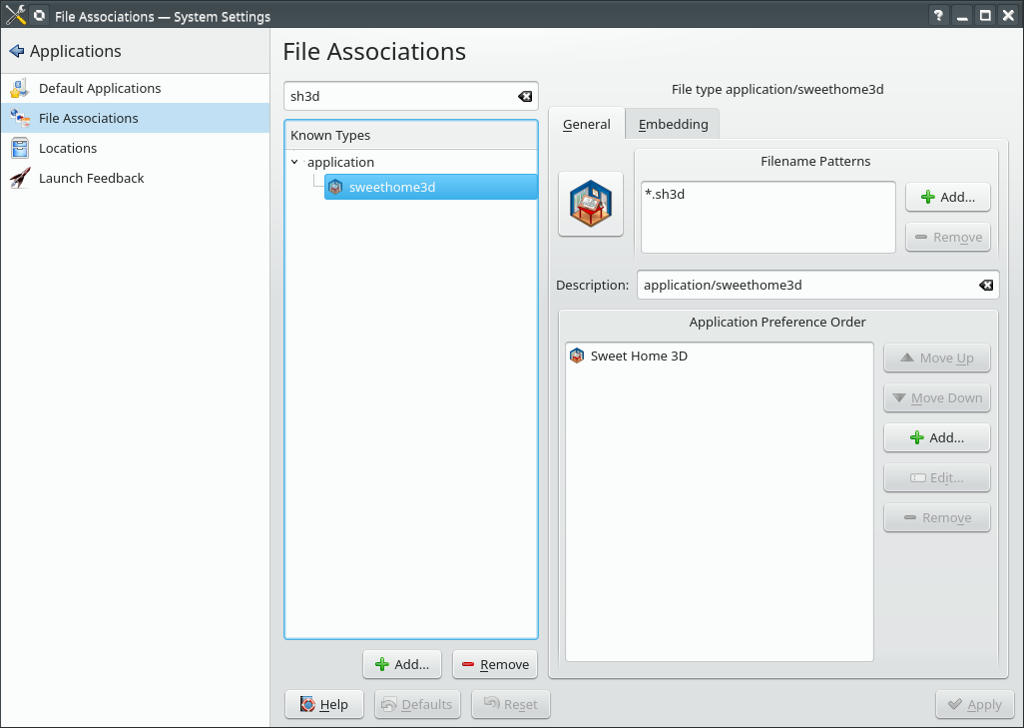
Apply and close.
3. Modify the default furniture
3.1 Go to SweetHome 3D-6.3→lib
3.2 Copy->Paste and rename the Furniture.jar file as Furniture-M.jar
3.3 Modify the Furniture-M as You wish and put it back in lib folder
3.4 Copy->Paste and rename the executable SweetHome3D file as SweetHome3D-M
3.5 Open SweetHome3D-M with an editor (e.g. kate) and modify
"$PROGRAM_DIR"/lib/Furniture.jar:with
"$PROGRAM_DIR"/lib/Furniture-M.jar:Save and close.
Make it executable (if is not already).
Run it to see what You’ve done.
I usually modify the category like split the lights in lights and lamps, mannequins goes to characters, some shapes from miscellaneous to basic shapes.
Most important for me is to add and set to every door or windows the statement:
doorOrWindowWidthDepthDeformable#1=false----------------------------------------
A computer program does what you tell it to do, not what you want it to do. Murphy's Law
When all else fails, read the instructions. Murphy's Law
If you don't like "AS IS", DIY. Dorin's law
