|
Sweet Home 3D Forum » List all forums » » Forum: New versions » » » Thread: New plugin: Advanced plan editing |
|
| Print at Dec 16, 2025, 9:30:35 AM | |
| Posted by starrunner at Sep 15, 2010, 11:35:30 AM |
New plugin: Advanced plan editingA new plugin is available in the plugin tracker on SourceForge: Advanced plan editing Available actions: - Resize (selected objects) - Edit room points (in a dialog) - Join walls Suggestions and comments are welcome. |
| Posted by hansmex at Sep 15, 2010, 2:58:34 PM |
|
Re: New plugin: Advanced plan editing Tobias, Interesting plug-in, thank you very much. I gave it a try and was able to change the size of a group of selected objects. It seems I cannot find out how to do the other two things: - edit room points - join walls. Do you think you could write a brief explanation how to do this? Thank you very much. Hans ---------------------------------------- Hans new website - under constuction hansdirkse.info |
| Posted by starrunner at Sep 16, 2010, 1:09:51 PM |
|
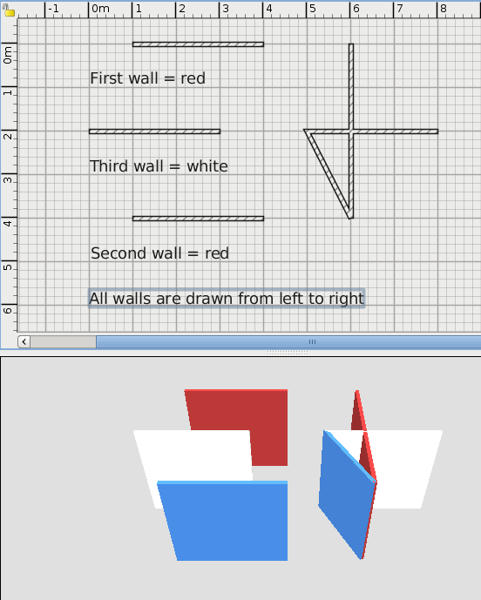
Re: New plugin: Advanced plan editing Hi Hans, Edit room points Lets you edit the (corner) points of the first selected room in a dialog or, if no room is selected, creates a new room (starting with one single point) you can edit then. Join walls Connects all selected walls by setting the end point of the first wall to the start point of the second, and so on. Maybe I should call it "Connect walls", to make it clearer. What did you try to do with it? |
| Posted by hansmex at Sep 16, 2010, 6:09:22 PM |
|
Re: New plugin: Advanced plan editing Tobias, Are we talking about the same plug-in? 1 - When I draw a room, select all four walls and access Edit -> Resize, I can resize the room by using the drop-down menu, setting it to exact or relative measurements, or to a percentage. X and Y can be individually changed, or Aspect Ratio can be checked. 2 - While nothing is selected, I have access to Edit but not to -> Resize. 3 - I draw four separate walls, together forming more a less a square, but without the ends of the walls touching. "Open corners", so to say. When I select all fours walls and then Edit -> Resize , I cannot see how I should connect the walls, and more in general, nothing happens. Based on your answer, I would expect the walls to be made longer, to the point that they form a closed quadrangle. START EDIT 4 - As to the nine "justification buttons": can you explain how to use them? I can see that the coordinates changes according to the button pressed, but it doesn't seem to make any difference. END EDIT Is it possible to write a detailed step-by-step tutorial with images on how to (a) edit room points, (b) create that new room, and (c) join or connect walls? Thanks for any explication you can offer. Hans ---------------------------------------- Hans new website - under constuction hansdirkse.info |
| Posted by fhoofman at Sep 16, 2010, 6:13:48 PM |
|
Re: New plugin: Advanced plan editing I have the same problem as Hans my project suddenly freeze. |
| Posted by starrunner at Sep 17, 2010, 8:33:18 AM |
|
Re: New plugin: Advanced plan editing Hi Hans, we are talking about the same plugin, but not about the same actions (= menu items) A plugin can have more than one action. So mine has three actions, two of them also available in the toolbar: - Edit -> Resize (available in the toolbar) - Plan -> Edit room points (also available in the toolbar) - Plan -> Join walls (not available in the toolbar) If you ask, why I didn't mentioned the menus in the plugin: The name depends on your locale. I thought if I talk about "actions", everything would be clear - but that seems to be "developer speak" ![]() To your question 4: If you look at the rulers during changing the "justification" (or if you have something in your plan that is not selected), it should become more obvious how they work. You are selecting in which direction to grow or shrink, in other words these coordinates are the "fix point". I hope, now that thats clear, I don't need to write a step by step tutorial ![]() |
| Posted by starrunner at Sep 17, 2010, 8:34:54 AM |
|
Re: New plugin: Advanced plan editing Hi Yudi, I can't see, where Hans is talking about a "freezing project"? When does this occur? |
| Posted by maker at Sep 18, 2010, 2:44:33 PM |
|
Re: New plugin: Advanced plan editing Hmm, well I tried it on another computer and it works fine (almost). The only problem seems to be the "Join walls" does not join the nearest points on the selected walls. Instead it joins (I think) the endpoint of 1st wall to starting point of 2nd wall. Also, it would be nice if input dimensions could be in feet too. And have "relative dimensions" in "Edit Points" dialogue. All in all, a wonderful start though! I'd been hoping for some precision features like this for some time ![]() |
| Posted by fhoofman at Sep 18, 2010, 5:56:36 PM |
|
Re: New plugin: Advanced plan editing Hi Yudi, I can't see, where Hans is talking about a "freezing project"? When does this occur? select 1 wall, and then edit->resize-> push center button-> ok you'll see what I mean ![]() |
| Posted by maker at Sep 19, 2010, 4:28:55 AM |
|
Re: New plugin: Advanced plan editing Can confirm this here too. Select only one wall. Push any of the "origin" buttons and, first the screen display turns weird, then it freezes. Additionally, the Width is displayed as "0". |
| Posted by starrunner at Sep 20, 2010, 9:02:25 AM |
|
Re: New plugin: Advanced plan editing Hi maker, as already described above, the "Join walls" function is working as expected. I renamed it to "Connect walls" in the new plugin version - hope that makes it more obvious. What do you mean by "relative dimensions" in "Edit points"? The only dimension available there, is the length of the line. Or do you mean "relative positions" (e.g. according to the upper left corner)? |
| Posted by starrunner at Sep 20, 2010, 9:06:02 AM |
New plugin version: Advanced plan editing 1.1A new version (1.1) of the plugin is available: Advanced plan editing Changes: - Renamed "Join walls" -> "Connect walls" - Fixed problem in resizing when selected elements have zero height or width - Fixed usage of unit in resize dialog - Added preview panel to "Edit room points" for better visualization of points and edges |
| Posted by maker at Sep 22, 2010, 7:15:36 AM |
|
Re: New plugin version: Advanced plan editing 1.1 Hi starrunner, I'm back to square one (my computer) with the plugin not working. (Maybe, somehow, Oracle Java installed by OpenOffice) is causing problems.) I tried opening the SH3D.jar kindly supplied by Puybaret from the console (commandline - is that right). But that does not give any message For the moment I've given up on this - I can do editing in Blender/wings3d. I'll try again after 2-3 days. Thanks for your help ![]() |
| Posted by starrunner at Sep 22, 2010, 7:45:25 AM |
|
Re: New plugin version: Advanced plan editing 1.1 Hi Maker, I've made already a feature request to have access to the console from inside the program. The command line I proposed here is for the installed version of SH3D, not the JAR! Maybe SH3D is looking into a different plugin directory, you could use the Process Monitor to check which directories SH3D tries to access. |
| Posted by starrunner at Sep 24, 2010, 9:35:41 AM |
|
New plugin version: Advanced plan editing 1.2 A new version (1.2) of the plugin is available: Advanced plan editing Changes: - Added Edit -> Rotate action - rotates the selected objects in arbitrary angles - Flip wall styles on mirroring (you can mirror objects by using negative factors in then resize dialog, e.g. Width = -100% mirrors the selected objects on the Y axis) |
| Posted by kjb at Sep 30, 2010, 10:40:19 AM |
|
Re: New plugin: Advanced plan editing I am unable to download this plugin what am i doinf wrong ??? something simple and dumd; amybe i'm to tired |
| Posted by starrunner at Sep 30, 2010, 12:45:43 PM |
|
Re: New plugin: Advanced plan editing Look at the Attached files section below of the comments. You can open that section with a little arrow handle on the right. There you'll find two files, the AdvancedEditing.sh3p file is the plugin you need to download. Click here for a direct download (this link works for version 1.2 only, as soon as a new version is available it will vanish). |
| Posted by hansmex at Oct 1, 2010, 8:34:09 AM |
|
Re: New plugin: Advanced plan editing Tobias, I am starting to like your plug-in VERY much. Especially the possibility to adjust the coordinates for rooms is very useful. Nevertheless, I have a request for additional features: join walls. What I would like to see, is: - 1 - After splitting a wall, I would like to be able to join the two wall segments, so that it becomes one wall again. If possible we could have some control about which colour or texture should be kept. A simple solution could be to apply the colour or texture of the segment that's chosen first to the combined wall. - 2 - Connect the end point and starting point of a series of wall segments. Example: If I draw a room, but the end point doesn't connect properly with the starting point, I don't get a nice "closed" corner. It would be nice if we could specify two end points and connect these to form a closed room. Thanks :-) Hans ---------------------------------------- Hans new website - under constuction hansdirkse.info |
| Posted by kjb at Oct 2, 2010, 6:53:51 AM |
|
Re: New plugin: Advanced plan editing thanks a lot -- got it KJB |
| Posted by starrunner at Oct 4, 2010, 10:06:09 AM |
|
Re: New plugin: Advanced plan editing Hi Hans, thanks, I like it too for - 1 -: If I understand you right, you would like a shortcut for:
|
| Posted by hansmex at Oct 4, 2010, 11:06:26 AM |
|
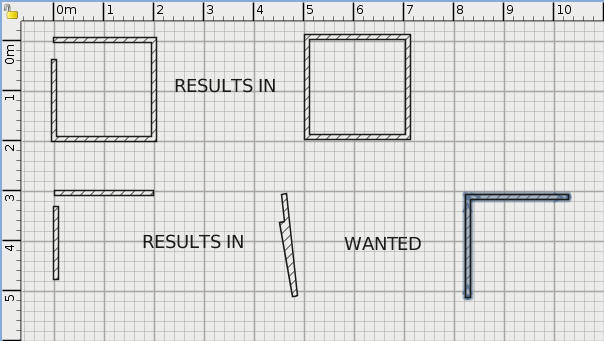
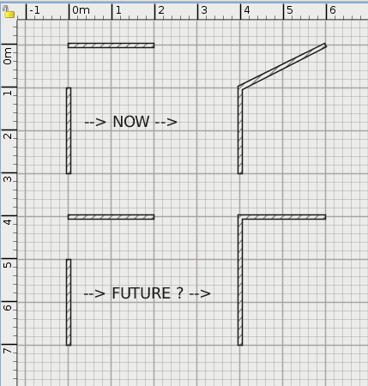
Re: New plugin: Advanced plan editing Tobias, 1 - Split wall --> Join walls What I would like here, is in fact a kind of Undo for the Split wall function. It should (re-)connect two parts of a straight wall. 2 - I am in the process of writing a tutorial for all plug-ins. This is an image I made to illustrate the behaviour of the Connect walls function as it behaves now. EDIT Here is the correct picture. END EDIT I made a new image that better shows what I would like. First it shows current behaviour: an open room can be closed, correcting a "mistake" that often happens. The second part of the image shows something that might be a useful new function. EDIT 2 I think this could be implemented by asking "Wall 1: Connect end point or start point?" and then "Wall 2: Connect end point or start point?" END EDIT 2 ![]() There is a variation on the second example: joining walls in a T-junction or a Y-junction, although its use would be more limited. I hope this clarifies what I meant. Hans ---------------------------------------- Hans new website - under constuction hansdirkse.info |
| Posted by starrunner at Oct 4, 2010, 12:06:24 PM |
|
Re: New plugin: Advanced plan editing Hi Hans, for the "Join walls" function - I could write that action, for sure. But I'll wait until Emmanuel moves the wall actions into their own menu - as you already mentioned in the 3.0 thread, the menu is quite huge, right now. And as long as you can achieve the described behaviour with small effort (in the way I mentioned it), I think its not that important. To the images: The "connect walls" action has nothing to do with the order the walls were drawn (as long as you select one by one): It connects the endpoint of first selected wall with the startpoint of the second selected wall. To achieve the desired behaviour of your last example, select the walls in the right order and reverse the walls before the action if necessary. |
| Posted by hansmex at Oct 4, 2010, 12:41:34 PM |
|
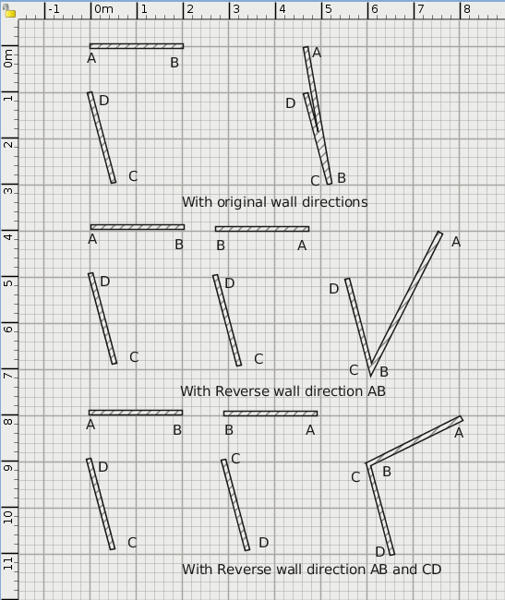
Re: New plugin: Advanced plan editing Tobias, First of all, as I'm writing this tutorial I want to thoroughly understand how each plug-in and each function works. I'm pretty sure other users may have similar questions. Or am I the only stupid guy here? So I'm not trying to annoy you, just wanting to understand the details. Also, I edited my last post: I corrected the picture and added some text. After reading your last post, I followed your instructions and reversed wall direction. Now I can join two walls, more or less in the way I want. Wow! Nevertheless, it's a bit of a hassle. Would it be possible to change the plug-in in such a way that we can point at the end points of the lines we want to connect? Like: the first end point clicked connects to the second end point clicked. That way the plug-in would work much more intuitively. One further request: in the current behaviour the walls are connected by moving one wall. Ideally it would also be possible to connect walls by stretching or extending them, as shown in the image below. Each option has its advantages, so I think (f you agree) that the current behaviour should be kept, and the "new" behaviour should be added, maybe with a dialogue box asking "Move or stretch?" ![]() EDIT This is a more complete "visual description" of the current behaviour of this plug-in. END EDIT Hans ---------------------------------------- Hans new website - under constuction hansdirkse.info |
| Posted by starrunner at Oct 4, 2010, 1:28:21 PM |
|
Re: New plugin: Advanced plan editing Hi Hans, I'm developing software since many years - I know that users don't understand the intention (and power) of some functions at first, so don't hesitate to ask... Currently a plugin has not the possibility to interact with the user interface of SH3D (at least not officially), thus I could show a dialog where you select the points to connect, but I can't let the user select the points on the plan, neither can I visualize that point in the plan. I think I implement the dialog in the next version of the plugin, that way I could show a notification when there is a previous connection that would be removed, too (as there is always only one for each start/endpoint). Btw. I don't move the wall, I just move the end points - if you look at your upper image, you'll notice that the upper wall is stretched there. The lower image you can achieve by reversing the direction of both walls and selecting the lower wall first. Maybe you should display the direction of the walls in your tutorial (by selecting them before taking the screen shots). |
| Posted by hansmex at Oct 4, 2010, 2:00:03 PM |
|
Re: New plugin: Advanced plan editing Tobias, I keep learning... :-) Maybe a pop-up window as in the Edit room points dialogue could help? Can you create user interaction there? Or maybe show all available connection possibilities (as an image on a large button?) and let people choose? Hans ---------------------------------------- Hans new website - under constuction hansdirkse.info |
| Posted by babygenius55 at Jul 17, 2011, 6:44:36 PM |
|
Re: New plugin: Advanced plan editing Hans brings up some very good points, and while i would like to see these as well, I must ask if this would confuse/muddle vertex placement of the model. Rather I would like to ask that if you do decide to put these changes in could you please keep the placement or any new vertices in the model in mind. Google sketchup is a very nice program, but upon export the models tend to break down(for lack of a better term) when it's time to render in outside programs. This program is great. i may have spoken too soon as I have yet to purposely try to create any non-manifold geometry. |
| Posted by babygenius55 at Jul 17, 2011, 6:48:06 PM |
|
Re: New plugin: Advanced plan editing Hmmm, the last portion of my previous post doesn't read quite right. Edit:I may have spoken too soon about the programs ability to export clean geometry while using you plugin in ways not foreseen. |
| Posted by starrunner at Jul 18, 2011, 2:52:38 PM |
|
Re: New plugin: Advanced plan editing Edward, I don't understand, what my plugin has to do with "vertex placement in the model" or the Google Sketchup Export? |
| Posted by kbon at Aug 7, 2012, 1:15:16 PM |
|
Re: New plugin: Advanced plan editing While reading this thread, I had the same idea Hans mentioned in his last post. After selecting walls and hit the "connect" button, a simple popup with i.e. four buttons would be sufficient. Those buttons could look like "E1 => S2" , "E1 <= S2", "E2 => S1" , "E2 <= S1" (just example, with E as "End" and S as "Start"). Maybe with a little graphic on top showing two walls and descriptions of their edges. At the first usage, one would need to look a at graphic and buttons to figure it out, but then it should be easy. And it shouldn't require much change of code (except the dialog box), just defining the two edges and their order by the buttons before connecting the walls. In that dialog one could also add more buttons, i.e. to connect the extensions of walls. Lets say I have a wall from (0;0)->(2;0) and (4;4)->(4;1). These intersect at (4;0), which is where I want them to connect. This is a simple example, but imagine two wall-edges very close to each other and maybe even overlapping. Simply connecting them would rotate wall a little to be able to connect to the other wall's edge, thus requiring readjustment afterwards to make them intersect at the same angle they as before. Computation of intersection of two straight lines is an easy mathematical task, also considering those two to be parallel (in which case there would be no intersection and the button could i.e. be disabled). Another suggestion is to enable wall thickness adjustment in both directions in the "resize" option (the disabled Y-field for walls). That's also simple mathematical or geometrical (if lines are not perpendicular) calculation. Wall thickness could then be extended in one direction, without "messing up" everything else on the other side of the wall (i.e. I have a complete house, but then decide to use thicker insulation on the outside -> I could easily expand wall thickness to outside direction without having to readjust wall edges as it was the case before when wall thickness was extended in both directions). I was about to create a plugin with the wall-thickness-adjustmend option myself, but even after reading the plugin-tutorial I'd need a while to read into Java. Besides, we already have this nice plugin, it would be nicer to extend this one rather than creating a new plugin. I think I'll give it a try, don't know if this plugin is still in development. |
| Posted by starrunner at Aug 8, 2012, 12:03:54 AM |
|
Re: New plugin: Advanced plan editing While the plugin is currently not in "active" development, I'm still able to add changes when needed - if it takes not to much time. So if for example you add (write) some missing features, I could integrate those. I haven't created the mentioned dialog for connecting walls, because it worked for me the way it is now as I just invert walls where necessary and it is difficult to come up with a comprehensible solution if more than two walls are selected (which is possible) - if you have one, feel free to implement it and send me the code. The idea of connection on the intersection point is nice, but would need either the the dialog first or another menu item. I don't think that adjusting the wall thickness has something to do with the resize dialog, at least not in the way you describe it. The resize operation "moves" every point relative to the selected position. That means a wall closer to that position would gain less thickness - your idea would only work for a rectangular connection of four walls. Next problem: your example calls a wall "outside", but a wall has only left and right. Calculating which one is on the inside and which one on the outside is not that easy (especially if you select walls which are not forming a closed figure). So all in all you would need a new action called "change wall thickness" which opens a dialog where you can select the direction (left/right) and the amount (relative/absolute) of the modification. By the way when you implement that functionality you will learn that the mathematical calculation is in most cases not the problem - it is the mapping into the object model and the creation of an intuitive UI. So a simple mathematical problem can lead to an extensive task for a software developer. |
| Posted by kbon at Aug 8, 2012, 10:35:05 AM |
|
Re: New plugin: Advanced plan editing Thanks for the quick answer! About connecting walls: You're right about the dialog box, I didn't consider cases of more than two walls. When I wrote that, I already had the idea of intersecting lines in mind, and such a dialog box would've eliminated the need of a second menu button. I'll see if I can come up with a usable solution :) About wall thickness: The intuitive perception of the "resize" operation is (at least to me) that I pick an object and can resize X and Y in different directions. Technically of course, that means moving the edge points. If I select a few walls, I can resize them (i.e. the convex hull, or the rectangle they span). Now I select a single wall. I can only adjust its length, not the thickness if it's a horizontal/vertical wall (the greyed out field for Y). Obviously this is because a wall consists of only 2 edgeds. Resizing a diagonal wall then behaves like regarding that wall as the diagonal of a rectangle, and move that rectangle, i.e. those 2 points. Now of course you're right, the "resize" dialog does not fit for changing wall thickness, all of its UI elements are already in use. I came up with the "resize" dialog, because I only tried it with single horizontal walls, and the Y-field was greyed out. One could then use the Y field to adjust the thickness, but as mentioned above, now I see it's not suited for this :) My example says "outside" becaus it's an example ^^ I mentioned "one side" before, of course it has to be "left" or "right". In the case of an example, I as the user of course know which one of left/right I'd have to choose when I want to change "outside". So yes, I'd need a separate dialog for that. And of course I'm aware that UI and intuitiveness often proves as the harder part, but as it may be seen from my explanations, I thought it could be easily integrated into your "resize" UI leaving only the mathematical part ^^ So as this requires a whole new dialog box, I guess I'll just try it myself. Currently reading into JPanel and other Java stuff (enabling "undo" etc). I hope I can come up with a working peace of code soon :) |
| Posted by baj at Nov 9, 2012, 10:55:38 AM |
Re: New plugin: Advanced plan editingawesome plugin... I find the Edit|Resize feature invaluable. One addition to the functionality I'd like to see is an 'Apply' button in the Resize dialog. This would be especially useful when moving objects using the resize/justify method. Currently this requires 2 Resize actions, one to facilitate the offset, then again to resize the object back to original size. With an 'Apply' button the 2 step procedure could be performed without closing the Resize dialog. Keep up the good work |
| Posted by starrunner at May 1, 2015, 11:22:10 PM |
|
Re: New plugin: Advanced plan editing Hi all, a new version of the plugin (1.6) is available. Besides some minor fixes it includes a "move" action (although it is a bit late for baj, who seemed to need such a feature) and a "flip" action (what was up to now only possible with negative values in the "resize" action). Thanks to Igor Perminov, who contributed some of the fixes and features. Tobias |
| Posted by hansmex at May 2, 2015, 8:03:18 AM |
|
Re: New plugin: Advanced plan editing Thank you very much !!! H ---------------------------------------- Hans new website - under constuction hansdirkse.info |
| Posted by rozel3 at Dec 13, 2015, 2:31:01 PM |
|
Re: New plugin: Advanced plan editing Can you tell me does this plug in work on Mac or PC? |
| Posted by starrunner at Dec 14, 2015, 8:14:16 AM |
|
Re: New plugin: Advanced plan editing I'm usually developing on Windows and I've never tested it on Mac. But as it is written in Java and as I don't think that I've used any platform specific functions, I'd guess it it is working on Mac as well. What's the reason you are asking? Just give it a try and you will know, if it is working on your platform. |
| Posted by rozel3 at Dec 14, 2015, 10:35:58 AM |
|
Re: New plugin: Advanced plan editing That's great will go ahead and try. Thxs |
| Posted by starrunner at Mar 20, 2016, 8:20:31 PM |
|
Re: New plugin: Advanced plan editing Hi all, a new version of the plugin (1.7) is available. New features and fixes:
@Hans: I've just seen your plugins user guide, excellent work. If would be nice if you update it to reflect the new features - for example moving is much easier since 1.6 version of the plugin. And I wouldn't say that "Connected walls should not be rotated" - as long as one selects the connected walls all together, the result will be as expected. In the next version of my plugin I'll rename "position" to "anchor" in the "Resize" action, indeed this is a better label. Tobias |
| Posted by edmond_dantes at Jul 6, 2016, 9:22:59 AM |
|
Re: New plugin: Advanced plan editing I have problem in using this plugin. I am on ubuntu 16.04, SW3D v. 4.5 When I launch sw3d I get $ sweethome3d Java 3D: implicit antialiasing enabled Invalid plug-in jar:file:/home/me/.eteks/sweethome3d/plugins/AdvancedEditing.sh3p!/META-INF%2FApplicationPlugin.properties: Not compatible application version $ Any hint? Thanks |
| Posted by starrunner at Jul 6, 2016, 3:20:31 PM |
|
Re: New plugin: Advanced plan editing Hi Edmont, I'd guess that the error message is self-explaining: Your SH3D version is to old for the current version of my plugin. It needs at least SH3D 5.2. If you want to stay with SH3D 4.5, you will have to use the version 1.6 of my plugin. Or you change the applicationMinimumVersion property in AdvancedEditing.sh3p/META-INF/ApplicationPlugin.properties and hope for the best (I don't know if the parts of the SH3D API I use in my plugin differ between both version). |
| Posted by edmond_dantes at Jul 6, 2016, 6:57:19 PM |
|
Re: New plugin: Advanced plan editing Given that ubuntu 16.04 is just two months old, I took for granted that the version from the repository was the latest. My fault. I will upgrade. Thank you |
| Posted by starrunner at Jul 7, 2016, 2:19:21 PM |
|
Re: New plugin: Advanced plan editing Application software is nearly always "out of date", see here: Why is the software in the ubuntu repos always out of date? Nevertheless - if you have problems installing the software by hand - just ask. Tobias |
| Posted by Skitzo0379 at Aug 3, 2016, 8:30:08 PM |
|
Re: New plugin: Advanced plan editing How do I open the menu? |
| Posted by starrunner at Aug 4, 2016, 2:46:13 PM |
|
Re: New plugin: Advanced plan editing Which menu are you talking about? |
| Posted by Bubblobill at Jun 7, 2017, 11:01:03 AM |
|
Re: New plugin: Advanced plan editing How hard would it be to provide the rotation option for x and y axis? |
| Posted by Puybaret at Jun 7, 2017, 2:16:40 PM |
|
Re: New plugin: Advanced plan editing This can't be done from a plug-in ---------------------------------------- Emmanuel Puybaret, Sweet Home 3D creator |
| Posted by Bubblobill at Jun 7, 2017, 3:11:50 PM |
|
Re: New plugin: Advanced plan editing [Moderated] |
|
|
Current timezone is GMT Dec 16, 2025, 9:30:35 AM |