If you want to show off your beautiful design, or if you want to share a file, here is some help on posting.

- Give a meaningful description where it says Post Topic*
- In the window underneath you can write your message.
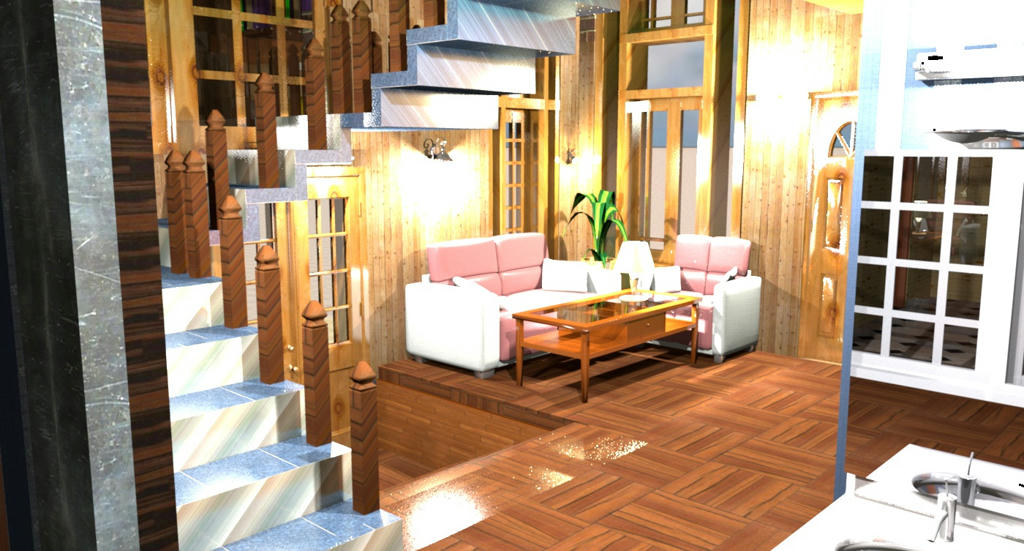
- If you want to share a picture, click the button Image and paste a link to the picture you want to show in the pop-up window. Use the button Preview to check if the picture appears in your post. Example: http://www.mediafire.com/conv/2f18753d3 ... df846g.jpg
- If you want to share a file, click the button http:// and paste a link to the file in the pop-up window. The link to your file will appear in your post, underlined and in light blue. The file itself is not included in the post, so choose a service that does not delete your file after a week. If you share a SH3D file, be sure to use only models that can be redistributed (models available on sweethome3d.com can be redistributed but not the ones coming from Trimble Warehouse).
- An excellent place to store all pictures and files that you want to share is www.mediafire.com . It's free, offers 5 Gb of storage and has a good and easy user interface. If you want an image hosted at media fire.com to appear in the forum, you should follow these steps:
1 - Open the image hosted at media fire.com
2 - Right-click on the image and select Share
3 - Click on More sharing options… option
4 - Copy the link from the Direct Link field
5 - Use that URL to insert the image in your post, pasting the URL between [ img ] and [ /img ] tags
6 - Preview your message to ensure it renders as you wish.
- If you want to change the appearance of part of the text, you simply highlight it. Then you can use one of the buttons on the top row, to change its appearance. B = bold, I = italics, U = underline, S = [s]strikethrough[/s], Size = bigger* or smaller font, Font = [font=times new roman]Times font*[/font], Color = different colour .
- You can nest these attributes: first you can make text bold, then select the text between the [start] and [/stop] brackets, to make it bold and underlined.
* [ size=5 ] = change by hand from [ size=3 ] to [ size=5 ]
* not all fonts work
If your text should really stand out, you may use the options Code or Quote . They give similar results, as shown below.
Code: Select all
Code - highlight the text that you want to stand out, then click the [color=blue]Code[/color] buttonIf you want to insert a list, click List and follow the instructions that appear.Quote - highlight the text that you want to stand out, then click the Quote button
- bullets
- numbers[/list=1]and also
- letters[/list=a]
Hans
- letters[/list=a]