Introduction
You speak a foreign language not supported in Sweet Home 3D yet, and would like to contribute to its translation into that language? From version 2.3, Sweet Home 3D supports SH3L files and this guide will learn you how to create such a file by yourself. A SH3L file is an auto installable language file and users just have to double-click on a SH3L file to translate Sweet Home 3D into the language described by that file.
Basic instructions
Creating a SH3L file consists of:
- downloading an English version of the files to translate,
- unzipping the downloaded file,
- adding a 2 letters suffix matching your language to the
.propertiesfiles it contains, - translating the text in the
.propertiesfiles, - converting them to ASCII encoding,
- translating the help text in the
.htmlfiles (not mandatory but will be really useful for users), - zipping the
.propertiesfiles and the help files back to a file with a SH3L extension, - double-clicking on the SH3L file to test your translation in Sweet Home 3D,
- distributing your SH3L file.
Detailed instructions
If you’re not afraid with the previous basic instructions, go forward with the next steps.
Getting the English version
Download the archive at /SweetHome3DTranslation.zip (version 7.5) and unzip it with the tools of your system.
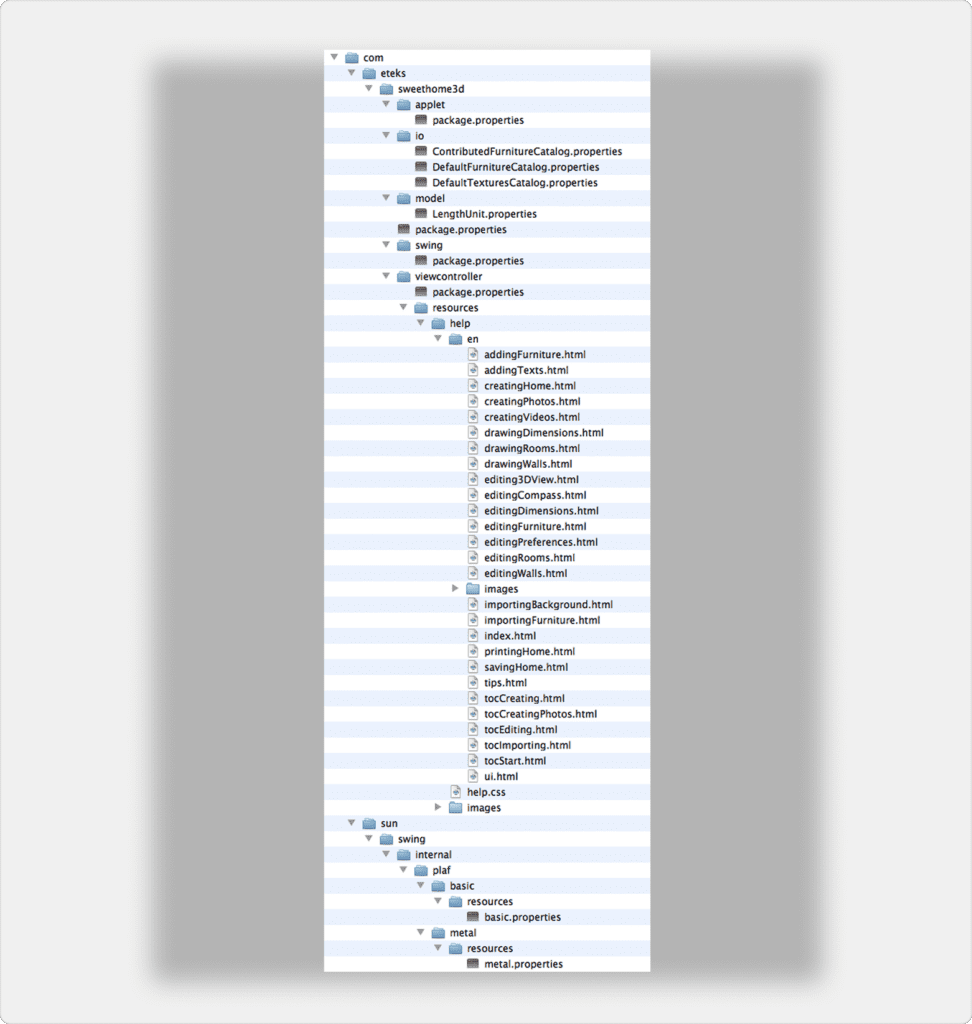
SweetHome3DTranslation.zip contains a set of files with .properties and .html extensions placed in subfolders as shown in figure 1.
All the.properties and .html files contain the English version of the texts you’ll have to translate into your language:
- the
package.propertiesfiles describe labels, menus and menu items shown in the user interface of Sweet Home 3D, - the
basic.propertiesandmetal.propertiesfiles describe standard dialog labels, - the ones ending by
Catalog.propertiesdescribe the names of the furniture and the textures available in the software, - the
.htmlfiles contain the text of the help of Sweet Home 3D.

The .properties files must be placed in the folders shown in figure 1. otherwise Sweet Home 3D won’t be able to use them correctly. So don’t move the files out of their folder, don’t rename any folder (except the en subdirectory of help) and don’t delete any folder.
Renaming files depending on your language
Before translating the .properties files, you should rename each of them by adding to their name an underscore followed by the 2 characters ISO code matching your language. You’ll find this code in the last column of the document https://www.loc.gov/standards/iso639-2/php/English_list.php.
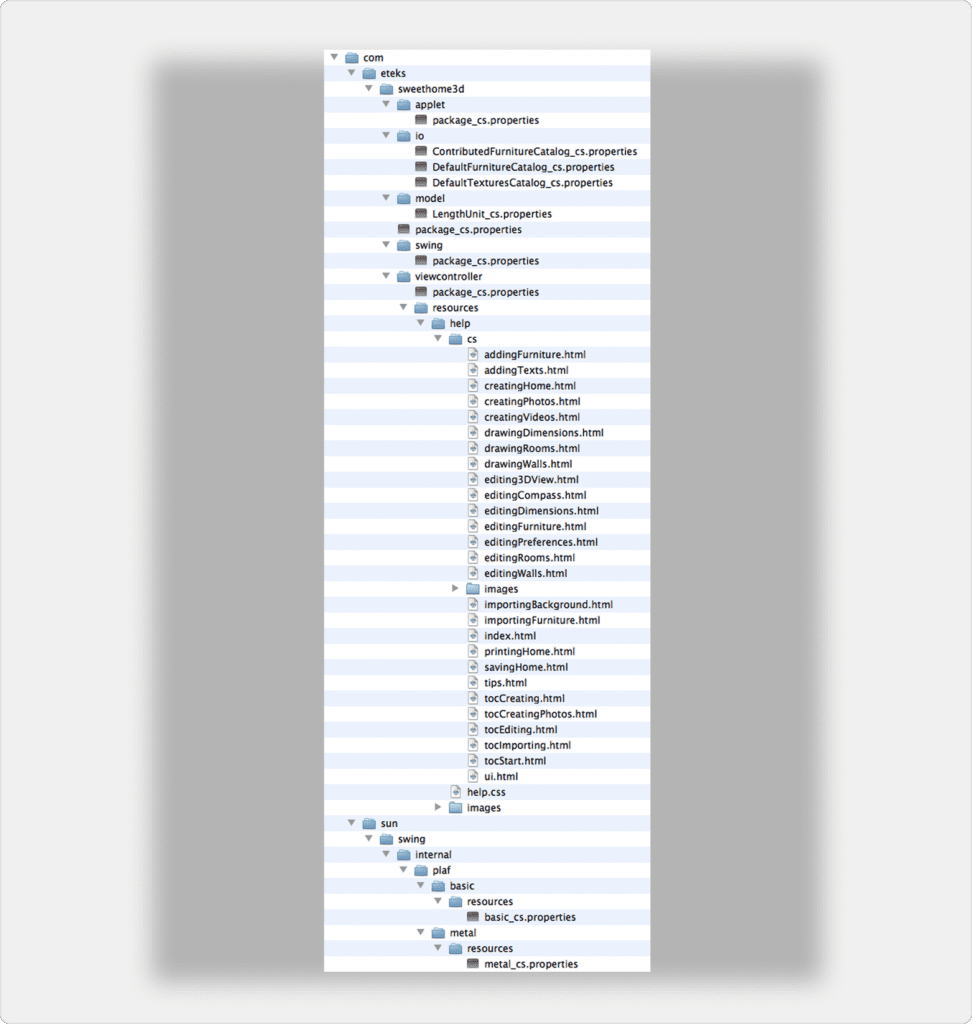
Then, if you want to translate the help files, you should rename also the en subdirectory of help with that 2 letters code too.
For example, the ISO code for Czech is cs. If you want to translate Sweet Home 3D into Czech, each file name should be suffixed by _cs, and you should rename the files as shown in figure 2.
Translating properties files
The .properties files are plain text files and you may edit them with any text editor like Wordpad, TextEdit or emacs. For example, the com/eteks/sweethome3d/package.properties file in Sweet Home 3D 3.0 contains the following text:
# package.properties 10 oct. 2007
#
# Copyright (c) 2024 Space Mushrooms <[email protected]>. All Rights Reserved.
#
# This program is free software; you can redistribute it and/or modify it under
# the terms of the GNU General Public License as published by the Free Software
# Foundation; either version 2 of the License, or (at your option) any later
# version.
#
# This program is distributed in the hope that it will be useful, but WITHOUT
# ANY WARRANTY; without even the implied warranty of MERCHANTABILITY or FITNESS
# FOR A PARTICULAR PURPOSE. See the GNU General Public License for more
# details.
#
# You should have received a copy of the GNU General Public License along with
# this program; if not, write to the Free Software Foundation, Inc., 59 Temple
# Place, Suite 330, Boston, MA 02111-1307 USA

# Resources for HomeFramePane class
HomeFramePane.untitled=Untitled


# Resources for MacOSXConfiguration class
MacOSXConfiguration.WINDOW_MENU.Name=Window
MacOSXConfiguration.MINIMIZE.Name=Minimize
MacOSXConfiguration.ZOOM.Name=Zoom
MacOSXConfiguration.BRING_ALL_TO_FRONT.Name=Bring all to front


# Resources for SweetHome3D class
SweetHome3D.3DError.message=<html>Sweet Home 3D will exit now because of a fatal error\
    <br>in 3D rendering system. Please update the DirectX/OpenGL drivers\
    <br>of your computer graphics card.
SweetHome3D.3DError.title=3D Error

SweetHome3D.confirmSaveAfter3DError.message=<html>Sweet Home 3D must exit now because of a fatal error in\
    <br>3D rendering system. Do you want to save all modified homes?
SweetHome3D.confirmSaveAfter3DError.title=3D Error
SweetHome3D.confirmSaveAfter3DError.save=Save
SweetHome3D.confirmSaveAfter3DError.doNotSave=Do not save
A .properties file contains three kinds of lines:
- the lines that starts with a # character are comments (shown in green in the previous example). Some comments contain legal information, some give information to developers or to translators. Keep these lines unchanged.
- empty lines are just used to separate the various parts of a
.propertiesfile. - the other lines start with some text used by Sweet Home 3D as a key to find a text displayed at screen (shown in blue in the previous example). Following this key, each of these lines contains an equal sign (
=) and a text in a given language. Your job starts from the equal signs. Don’t change the text of the key and replace the English text after the equal sign by its translation.
Special cases:
- The texts starting with a
<html>tag contains some text at HTML format. These texts contain some other HTML tags between<and>signs, like<br>in the previous example which represents a carriage return in the middle of long texts. Don’t remove these HTML tags, they help Sweet Home 3D to present correctly some texts. Translating text between HTML tags isn’t very difficult, except maybe for the worst HTML text which is the value ofWallPanel.wallOrientationLabel.textkey. - To avoid long lines in the text editor, some lines
are splitted in two or more lines and then separated by back slashes
\, like the line starting bySweetHome3D.3DError.messagein the previous example. In that case, don’t remove the\sign located at the end of a line because it indicates the next line follows the current line. - Some texts contain special characters sequence starting
with a
%s,%d,%1$s,%2$s… These characters sequence will be replaced by a file name, a unit or a number when needed, so don’t remove them.
For example, the character sequence%sin the text of the following keyHomeFurniturePanel.widthLabel.text:
HomeFurniturePanel.widthLabel.text=Width (%s):
will be replaced by the unit currently in use. The two character sequences%1$dand%2$dthat appear in the text of the following keyPrintPreviewPanel.pageLabel.text:
PrintPreviewPanel.pageLabel.text=Page %1$d/%2$d
will appear at screen as a page number and the page count, and you should translate only the wordPage. - Some texts contain also the special characters sequence
\n, like in the following example:HomeController.saveError=Can't save home in\n"%s"
This character sequence is displayed by Sweet Home 3D as a carriage return to split a line at screen, and you shouldn’t remove them. - The value of the key
HelpController.helpIndexindicates the directory where the help files can be found. If you translate the .htmlhelp files, you should replace theensubdirectory found by the 2 letters code of your language.
For example, if you translate help to Czech, it shoud become:
HelpController.helpIndex=/com/eteks/sweethome3d/viewcontroller/resources/help/cs/index.html
- The text of the keys that ends with
.mnemonicare used by Sweet Home 3D to guess which letter in a label or a menu item should be underlined for keyboard access. This mnemonic letter depends on the displayed word and you should find a unique one per dialog box or menu.
For example, the following texts and mnemonics displayed in the furniture modification dialog box:
HomeFurniturePanel.nameLabel.text=Name:
HomeFurniturePanel.nameLabel.mnemonic=N
HomeFurniturePanel.nameVisibleCheckBox.text=Display name in plan
HomeFurniturePanel.nameVisibleCheckBox.mnemonic=S
HomeFurniturePanel.widthLabel.text=Width (%s):
HomeFurniturePanel.widthLabel.mnemonic=W
can be translated in French by:
HomeFurniturePanel.nameLabel.text=Nom :
HomeFurniturePanel.nameLabel.mnemonic=N
HomeFurniturePanel.nameVisibleCheckBox.text=Afficher le nom dans le plan
HomeFurniturePanel.nameVisibleCheckBox.mnemonic=S
HomeFurniturePanel.widthLabel.text=Largeur (%s) :
HomeFurniturePanel.widthLabel.mnemonic=L
- Use Sweet Home 3D or 3d models import page to help you translate the
.propertiesfiles ending byCatalog.properties.
Converting properties files to ASCII encoding
If you translated texts into a language with letters not belonging to ISO-8859-1 encoding (mainly Central and Eastern Europe languages and languages with a non-latin alphabet), you’ll have to convert all your .properties files to an ASCII encoding supported by Sweet Home 3D. This conversion can be done with the native2ascii tool provided with the JDK or can be performed with the following form.
For each .properties file, create a backup of that file, copy/paste the text to convert in the following text area, click on the Convert button and copy/paste the converted text back in its .properties file.
The conversion tool will replace each non ASCII character (accented latin letters and non-latin letters) by a sequence starting by \u and followed by a 4 hexadecimal digits code matching that character in Unicode. Miserably, this conversion will make your text quite unreadable for a human, but if you don’t perform it, Sweet Home 3D won’t be able to display the characters of your translation correctly. This is the reason why you should create a backup of your original .properties files, in case you want to change them later.
If you want to directly edit .properties files converted to ASCII, you may also use Properties Editor application available as a Jar executable file here.
Translating the help files
A good translation of Sweet Home 3D should also include the translation of its help files. Translating all the .html files is a long task, but it will really help the users to learn the software and avoid some support requests in Sweet Home 3D forum. Use any HTML editor to translate these files, trying to keep the links it contains and its style sheet unchanged.
Once translated, you should also create screen captures of the dialog boxes in your language to replace the images found in com/eteks/sweethome3d/viewcontroller/resources/help/en/images. To be able to create such screen captures, create and test a first SH3L file with the following steps (once a SH3L file containing translated .properties files exists, you may also request to the developer of Sweet Home 3D to generate the screen captures).
Creating the SH3L file
Once all the .properties and .html files are translated and converted to ASCII if necessary (or even before if you want to test this procedure), you should zip them in a file. Depending on your system, creating a zip file can be done with the following procedure:
- under Windows, select the
comfolder containing all the translated files and choose Send to > Compressed folder from its contextual menu, - under Mac OS X, select the
comfolder containing all the translated files and choose File > Compress « com » menu item, - under Linux, select the
comfolder containing all the translated files, choose Create archive… from its contextual menu then select .zip in the format list.
Finally, change the .zip extension of the zip file to .sh3l. A SH3L file can have any name, but to avoid conflicts with existing SH3L files, you should name it from the language it contains and the version of Sweet Home 3D you translated (for example, French-4.1.sh3l could be a good name for the French translation of Sweet Home 3D 4.1).
Testing a SH3L file
To test the translation, double-click on a SH3L file or choose it with the Import language library file button  displayed at the top of the Preferences pane. This will launch Sweet Home 3D and translate its user interface to the language described in the SH3L file. This will also copy the SH3L file in a folder depending on your system:
- under Windows Vista / 7 / 8 / 10 / 11, this folder is C:\Users\user\AppData\Roaming\eTeks\Sweet Home 3D\languages,
- under Windows XP and previous versions of Windows, this folder is C:\Documents and Settings\user\Application Data\eTeks\Sweet Home 3D\languages,
- under macOS, it’s the subfolder Library/Application Support/eTeks/Sweet Home 3D/languages of your user folder,
- under Linux and other Unix, it’s the subfolder .eteks/sweethome3d/languages of your user folder,
- with the portable version of Sweet Home 3D, it’s the subfolder data/languages of the folder where Sweet Home 3D application is stored,
Note also that during the development of your SH3L file, you’ll probably have to relaunch Sweet Home 3D to see the changes in your SH3L file.
Distributing SH3L files
Once your SH3L file is ready, you can propose it to anyone, announce it to Sweet Home 3D users in the forum part reserved to foreign languages or in other places. If you agree, it can be made available on this web site in the page about translations supported by Sweet Home 3D.
Updating SH3L files
Some releases of Sweet Home 3D bring new features to translate, some don’t. If you don’t translate the user interface labels matching these new features, Sweet Home 3D will work but all the new labels will appear in English. To find the new keys and the updated keys in .properties files, you can use a feature offered by SourceForge.net that lets you compare two versions of a project file:
- Search the dates of Sweet Home 3D versions you want to compare in history (for example, July 19, 2015 for version 5.0 and February 2, 2015 for version 4.6)
- Click on the
.propertiesor.htmlfile you want to update in figure 1, - Select the two check boxes of the revision number matching the version date for the updated file, choosing the date that is just before a version date of Sweet Home 3D,
- Click on Compare button.
The last click will show you the differences between the two versions of that .properties file (for example, this link will show you the differences between the version 4.6 and the version 5.0 of the file com/eteks/sweethome3d/viewcontroller/package.properties).
Once you found the differences, udpate your translation, adding new key names if necessary, and release a new version of your translation.


