|
Sweet Home 3D Forum » List all forums » » Forum: 3D models and textures » » » Thread: Streets and Roads |
||
| Print at Dec 20, 2025, 12:09:59 PM |
|
|
| Posted by KitchM at Jul 31, 2019, 6:57:48 PM |
|
Streets and Roads I am attempting to create my plot or site plan. I need a street or road to go along the side of the property in 2D view. How can I do that? |
| Posted by Mike53 at Jul 31, 2019, 9:43:28 PM |
|
Re: Streets and Roads Just draw a room the size and shape you need your road to be, modify it to not show a ceiling and texture the floor with 1 of the "pavement" textures, in the recently released library 1.7 there are some road markings too |
| Posted by KitchM at Aug 1, 2019, 12:43:37 AM |
|
Re: Streets and Roads Thanks. And what can a person do for a curved driveway? |
| Posted by Bubblobill at Aug 1, 2019, 6:53:13 AM |
|
Re: Streets and Roads You use the same trick using curved walls. Draw the shape with walls so that the area is enclosed. Change to the room tool thing, double click in the enclosed area to create the room. Change the wall height to something along the lines of a kerb or delete them altogether. Modify the room as for the road. |
| Posted by KitchM at Aug 2, 2019, 8:08:30 PM |
|
Re: Streets and Roads I must be doing something wrong. I created a room, but there is no way to curve it that I can find. For my street, I can create the room, which is okay for the straight street, but the option to add the payment is not available. |
| Posted by Mike53 at Aug 2, 2019, 9:05:39 PM |
|
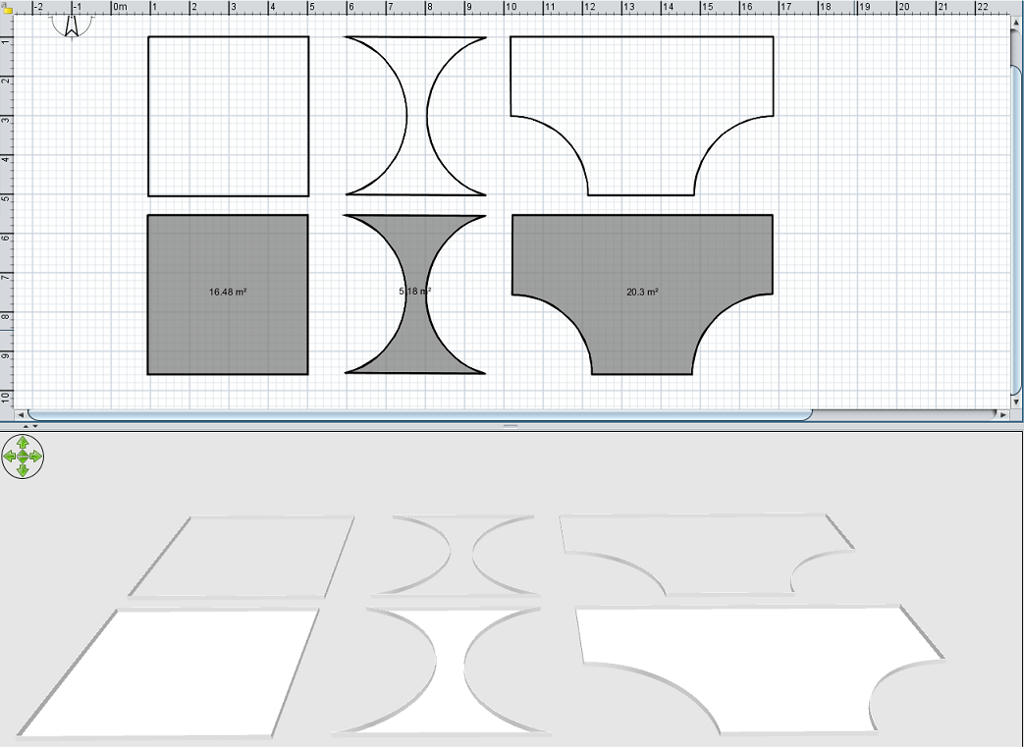
Re: Streets and Roads Not sure what you refer to as "add payment", are you using google translate? Look at this image ![]() The top row is 3 shapes created with walls, the 2nd has an arc added to the 2 side walls, the 3rd was made with 6 walls, this also has an arc on 2 of its walls. Arcs can be added either in the walls modification window, you will see Arc in the bottom right corner or move your mouse pointer to the centre of a wall, where the wall has an arrow on one side, your pointer will change to a double arrow, you can then left click your mouse and drag the wall to form your arc. Once you have achieved the shape you need select the room tool and double click within the borders formed by the walls, remember, for this to work all the walls MUST be joined. This method, when used on a level with an elevation of 0 will give you a shape that has no depth. If you use the same method, but at an elevated level where the floor has a depth, the shape you create will have that depth, very handy for creating custom kitchen worktops, steps, lintels, copings etc. For these you can export your room and import it as an object. And don't forget you can use the room tool to create a shape without the use of walls, just select the tool and draw in your 2d window by randomly clicking the mouse |
| Posted by Mike53 at Aug 2, 2019, 9:13:37 PM |
|
Re: Streets and Roads The 3rd shape shown is a representation of a turn-around point for a car.......it is NOT a pair of pants...as my mrs has just commented |
| Posted by VeroniQ at Aug 2, 2019, 11:15:38 PM |
Re: Streets and Roads Mike53 (and Mrs)! KitchM, this tutorial and this tip might help you too. |
| Posted by KitchM at Aug 2, 2019, 11:18:59 PM |
|
Re: Streets and Roads Thanks all. @Mike53, that should be pavement. Sometimes I am just too sloppy. Sorry. |
| Posted by bdfd at Aug 3, 2019, 6:03:04 AM |
|
Re: Streets and Roads Hi, Just look at the exteriors of my projects. I created few different streets with plenty of details… . ---------------------------------------- Evil progresses when good people do nothing! --- SH3D 7.1 and nothing else - W11 64b in 4K |
|
|
|
Current timezone is GMT Dec 20, 2025, 12:09:59 PM |