When I Create Photo I see my ground texture extend all the way to the horizon...
How do I either adjust the Horizon or force the ground texture to match that of my floor plan?
I also would like to put a photo of my view from my apartment out the window but when I import it as a texture. The bottom of the image is displayed at the horizon... So knowing how to adjust the horizon would be helpful too...
I couldn't find anything in the help or the forums on this.
Thanks!

 Changing the Floor size..?
This topic has been viewed 9511 times and has 3 replies

Re: Changing the Floor size..?
You have to create a room and change its floor texture.
If you want a surface that covers all your home, double-click on one of its walls when the create room tool is selected.
If you want a surface that covers all your home, double-click on one of its walls when the create room tool is selected.
Emmanuel Puybaret, Sweet Home 3D creator
Re: Changing the Floor size..?
Great.. thank you!
Can you tell me about the horizon as well? I'd like to have the view of buildings out the apartment window...
Can you tell me about the horizon as well? I'd like to have the view of buildings out the apartment window...
Re: Changing the Floor size..?
I think the best tip to get a nice horizon is to apply a photo on a dummy wall at the exterior.
For example, to create the following image
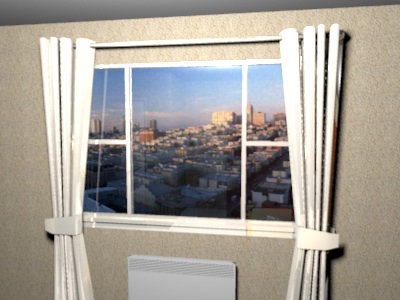
I created a wall at the exterior of the room and changed the side texture of the wall with an imported photo. When I imported that photo as a texture, I set the same height as the one of the wall (250 cm).
A last tip : to ensure the exterior view is correctly enlighted, I put a dummy ceiling close to it (Sweet Home 3D creates a new light in the middle of each ceiling).
I created the previous image with the HotelRoom.sh3d file joined to this message.
For example, to create the following image
I created a wall at the exterior of the room and changed the side texture of the wall with an imported photo. When I imported that photo as a texture, I set the same height as the one of the wall (250 cm).
A last tip : to ensure the exterior view is correctly enlighted, I put a dummy ceiling close to it (Sweet Home 3D creates a new light in the middle of each ceiling).
I created the previous image with the HotelRoom.sh3d file joined to this message.
- Attachments
-
- HotelRoom.sh3d
- (563.56 KiB) Downloaded 10450 times
Emmanuel Puybaret, Sweet Home 3D creator
Who is online
Users browsing this forum: No registered users and 1 guest