SH3D & Tools linux install & config -my way

This topic has been viewed 133081 times and has 15 replies
Thread status: Active
Questions about Sweet Home 3D installation [img]http://www.sweethome3d.com/images/flags/en_small.gif[/img]
User avatar
dorin
Posts: 824
Joined: Thu Apr 24, 2014 9:14 am
Country: Vatra Dornei, Suceava, Romania

SH3D & Tools linux install & config -my way

Post by dorin »

Hardware at work (home):
CPU= INTEL Core2duo (I7 gen 3)
Mem. DDR3= 4G (8G)
Dedicated Graphic card= none
System:
debian netinstall + KDE desktop

Preparation
Download from surgeforge.net:
- sweethome3d 64bit;
- Furniture Library Editor;
- optional Furniture Library Editor with ID;
- Texture Library Editor;
- Huge File Cleaner;

I Installation

1. Make a new folder in user home (or whatever) name „Sweet Home”(or whatever) :
1.1 Extract in it SweetHome3D-6.3-linux-x64.tgz; You will have a new folder „SweetHome3D-6.3”;
1.1.1 In this new folder double click on SweetHome3D file and choose „Execute”; Will show up a new SH3D project;
1.1.2 Go to „settings” and modify something there useful for You (like unit dimensions, wall thickness, You name it);
This action will create in Your home the hidden folder „ .eteks” and other sub folders;
Now You have a basic working SH3D.
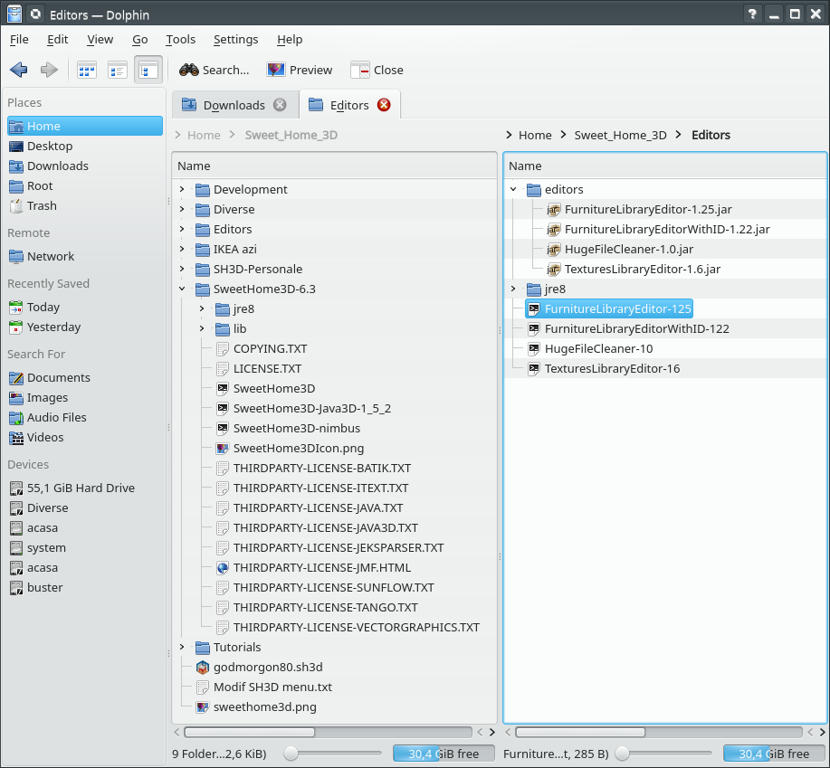
2. In the „Sweet Home” folder create a new folder name “Editors”;
2.1 Go to “Editors” and create also a new folder name “editors”;
2.2 Move the 3(4) jar files of editors from Downloads to Editors/editors;
2.3 Open SweetHome3D-6.3 and copy jre8 folder to Editors;
2.4 Create a separate text file for every editor You want to launch in Editor folder with this text inside accordingly with individual jar file like this:

Code: Select all

#!/bin/sh  
# Retrieve Furniture Library Editor directory 
PROGRAM=`readlink "$0"` 
if [ "$PROGRAM" = "" ];
 then   
PROGRAM=$0 
fi 
PROGRAM_DIR=`dirname "$PROGRAM"`  
# Run Furniture Library Editor 
exec "$PROGRAM_DIR"/jre8/bin/java -jar "$PROGRAM_DIR"/editors/FurnitureLibraryEditor-1.25.jar
and save it with corresponding name;
Make it executable.
Verify if work.
Image
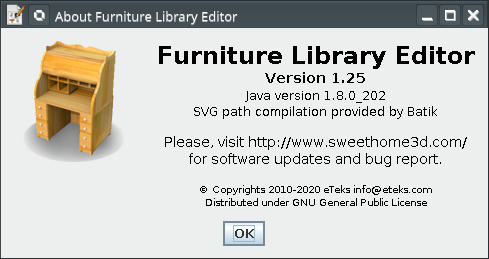
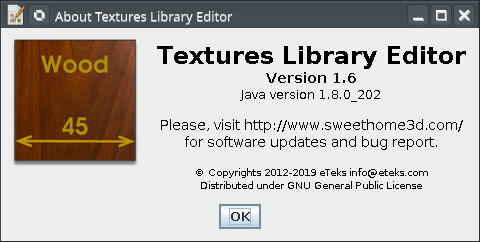
Verify also throw Help→About or similar and You could see this:
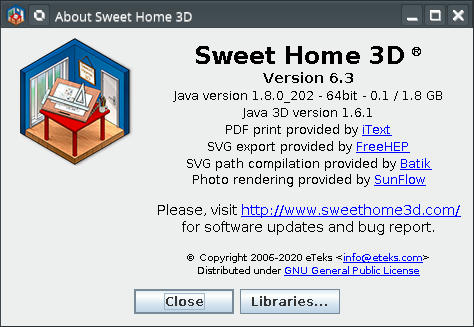
Image Image Image
If all this work fine until now You could go to next chapter.

II Customization
1. Set the defaults for sh3d files:
1.1 Right-click on start button and choose Edit Application…
1.2 Under Graphics menu add a new entry like this:
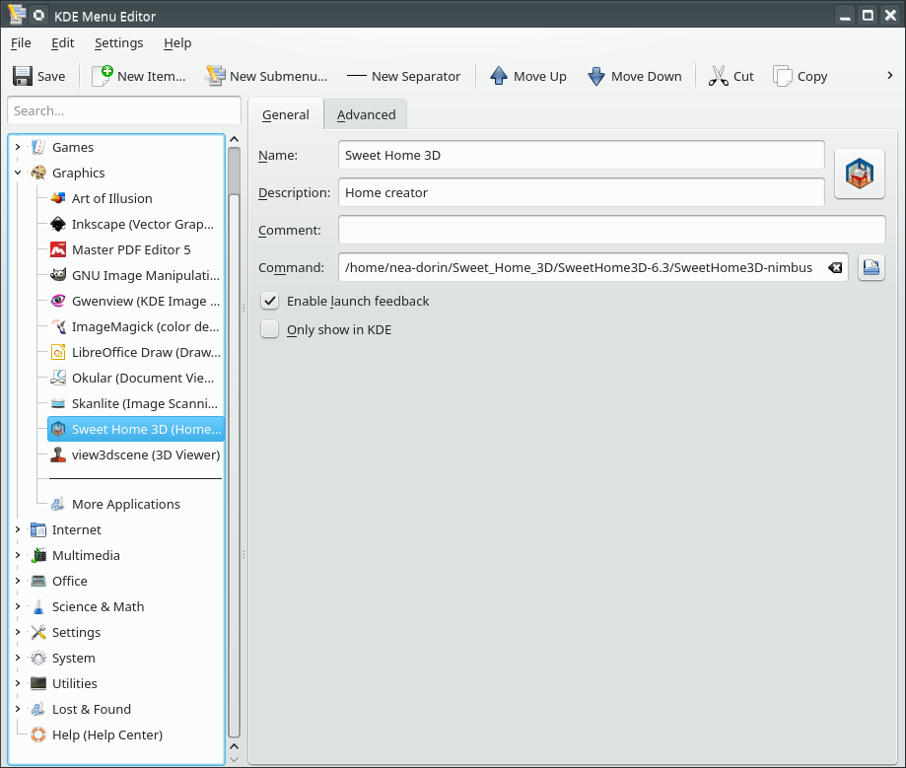
Image
Save and close.

2. Click on start and choose System Settings→Applications→File Associations
2.2 On applications +Add… , insert a name (sweethome3d)
2.3 On Edit set the Filename patterns, icon, description and the applications
2.4 For application and icon You have to navigate to
/home/user-name/Sweet Home/SweetHome3D-6.3/SweetHome3D
/home/user-name/Sweet Home/SweetHome3D-6.3/SweetHome3DIcon.png
2.5 Sommeting like this:
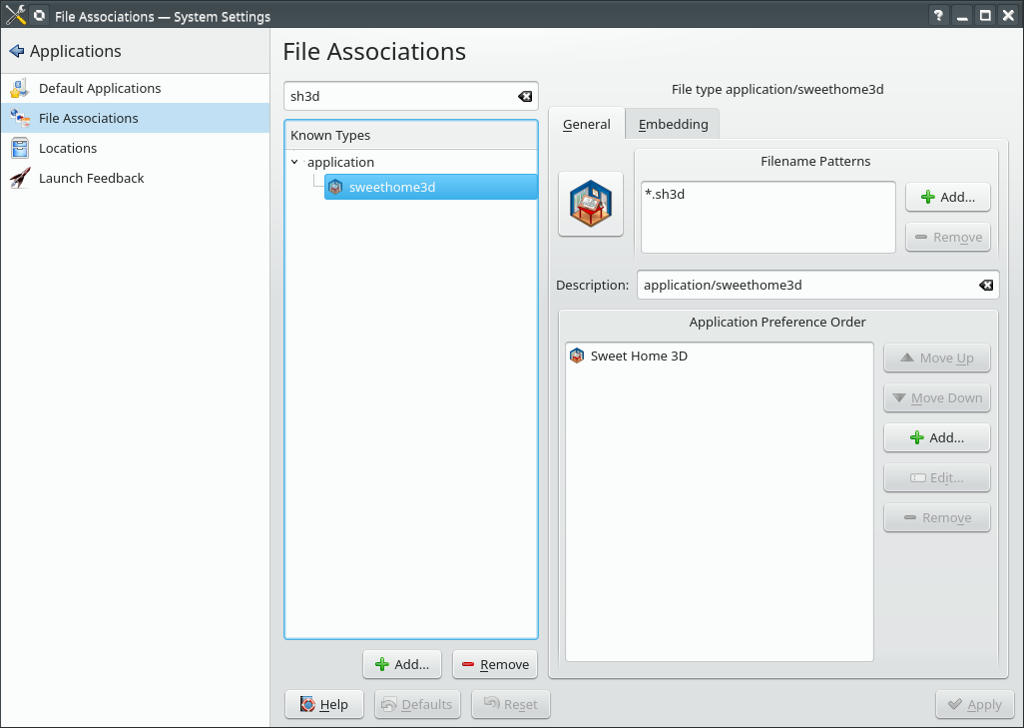
Image
Apply and close.
3. Modify the default furniture
3.1 Go to SweetHome 3D-6.3→lib
3.2 Copy->Paste and rename the Furniture.jar file as Furniture-M.jar
3.3 Modify the Furniture-M as You wish and put it back in lib folder
3.4 Copy->Paste and rename the executable SweetHome3D file as SweetHome3D-M
3.5 Open SweetHome3D-M with an editor (e.g. kate) and modify

Code: Select all

"$PROGRAM_DIR"/lib/Furniture.jar:

with

Code: Select all

"$PROGRAM_DIR"/lib/Furniture-M.jar:

Save and close.
Make it executable (if is not already).
Run it to see what You’ve done.

I usually modify the category like split the lights in lights and lamps, mannequins goes to characters, some shapes from miscellaneous to basic shapes.
Most important for me is to add and set to every door or windows the statement:

Code: Select all

doorOrWindowWidthDepthDeformable#1=false

A computer program does what you tell it to do, not what you want it to do. Murphy's Law
When all else fails, read the instructions. Murphy's Law
If you don't like "AS IS", DIY. Dorin's law
User avatar
Puybaret
Posts: 9440
Joined: Mon Nov 07, 2005 12:00 pm
Country: Paris, France
Contact:

Re: SH3D & Tools linux install & config -my way

Post by Puybaret »

Many thanks Dorin for these detailed instructions. I added a link to this thread in Download page.
Emmanuel Puybaret, Sweet Home 3D creator
AndresEOED
Posts: 4
Joined: Fri Apr 03, 2020 9:16 am
Country: United Kingdom

Re: SH3D & Tools linux install & config -my way

Post by AndresEOED »

For vanilla ubuntu gnome the following worked for me.
1.1.1 In this new folder double click on SweetHome3D file and choose „Execute”; Will show up a new SH3D project
The execute step is the one shared in the downloads page by @puybaret
https://askubuntu.com/questions/286621/ ... n-nautilus

Following from here: https://howto-ubuntunew.blogspot.com/20 ... d-552.html on ubuntu you can create a desktop so that you can find it on dash.

$ sudo gedit /usr/share/applications/sweethome3d-6.3.desktop

[Desktop Entry]
Version=1.0
Name=Sweet Home 3D 5.5.2
GenericName=Interior 2D design application with 3D preview
GenericName[de]=Innenraumplaner
Comment=Interior design Java application for quickly choosing and placing furniture on a house 2D plan drawn by the end-user with a 3D preview
Exec=/home/andres/SweetHome3D-6.3/SweetHome3D
Icon=SweetHome3DIcon
StartupNotify=true
StartupWMClass=com-eteks-sweethome3d-SweetHome3D
Terminal=false
Type=Application
Categories=Graphics;2DGraphics;3DGraphics;
Keywords=interior;design;2D;3D;home;house;furniture;java;

Special precaution on the Exec line as you might have used a different location. you can find the file mentioned in step 1.1.1 above and copy it. when you paste it in gedit it will past the full path, saves form typing mistakes.

for the icon right click in the folder where the png is located (again step 1.1.1. above).

$sudo cp SweetHome3DIcon.png /usr/share/icons/
AndresEOED
Posts: 4
Joined: Fri Apr 03, 2020 9:16 am
Country: United Kingdom

Re: SH3D & Tools linux install & config -my way

Post by AndresEOED »

For vanilla ubuntu gnome the following worked for me.
1.1.1 In this new folder double click on SweetHome3D file and choose „Execute”; Will show up a new SH3D project
The execute step is the one shared in the downloads page by @puybaret
https://askubuntu.com/questions/286621/ ... n-nautilus

Following from here: https://howto-ubuntunew.blogspot.com/20 ... d-552.html on ubuntu you can create a desktop so that you can find it on dash.

$ sudo gedit /usr/share/applications/sweethome3d-6.3.desktop

[Desktop Entry]
Version=1.0
Name=Sweet Home 3D 5.5.2
GenericName=Interior 2D design application with 3D preview
GenericName[de]=Innenraumplaner
Comment=Interior design Java application for quickly choosing and placing furniture on a house 2D plan drawn by the end-user with a 3D preview
Exec=/home/andres/SweetHome3D-6.3/SweetHome3D
Icon=SweetHome3DIcon
StartupNotify=true
StartupWMClass=com-eteks-sweethome3d-SweetHome3D
Terminal=false
Type=Application
Categories=Graphics;2DGraphics;3DGraphics;
Keywords=interior;design;2D;3D;home;house;furniture;java;

Special precaution on the Exec line as you might have used a different location. you can find the file mentioned in step 1.1.1 above and copy it. when you paste it in gedit it will past the full path, saves form typing mistakes.

for the icon right click in the folder where the png is located (again step 1.1.1. above).

$sudo cp SweetHome3DIcon.png /usr/share/icons/
For got to add at the end: in the file manager right click (open in terminal...)
otadmin
Posts: 71
Joined: Sun Dec 17, 2017 3:11 am

Re: SH3D & Tools linux install & config -my way

Post by otadmin »

Thank you Dorin for the detailled instructions. Followed and got SH3D 7 installed on LinuxMint 21. Newer version than in the repositories.
Now have to install Furniture & Texture editors. Your instructions say "2.3 Open SweetHome3D-6.3 and copy jre8 folder to Editors;". However in SH3D 7.1 there is no jre8 folder. Please new instructions.
User avatar
dorin
Posts: 824
Joined: Thu Apr 24, 2014 9:14 am
Country: Vatra Dornei, Suceava, Romania

Re: SH3D & Tools linux install & config -my way

Post by dorin »

@otadmin
I'm happy it is useful at least for you.
1. I recommend to have and use ONLY ONE version, the installer one NOT THE REPOSITORY ONE.
1.1 Also I prefer to have it all somewhere in my home folder than under /usr/.... but it's your choice.
2. Starting with SH3D-6.5 the jre8 folder was replaced with runtime.
So, copy the runtime folder and rename it as jre8 OR modify the path accordingly.
In my case I've downloaded the latest jre8 version for linux (jre1.8.0_351) and it appear to work.

Hope this is helpful.
A computer program does what you tell it to do, not what you want it to do. Murphy's Law
When all else fails, read the instructions. Murphy's Law
If you don't like "AS IS", DIY. Dorin's law
User avatar
Keet
Posts: 1807
Joined: Fri Apr 08, 2022 7:13 am
Country: Netherlands

Re: SH3D & Tools linux install & config -my way

Post by Keet »

I work almost exclusively through the file manager. I created a custom command to open .sh3d files from the file manager and that works fine. But the same doesn't work for the furniture and texture editors. The program is opened but not with the file I selected from the file manager. Any idea how to fix that?
Dodecagon.nl
1300+ 3D models, manuals, and projects
User avatar
dorin
Posts: 824
Joined: Thu Apr 24, 2014 9:14 am
Country: Vatra Dornei, Suceava, Romania

Re: SH3D & Tools linux install & config -my way

Post by dorin »

Small update.
After points 2 to 2.5 (if all works well) add point
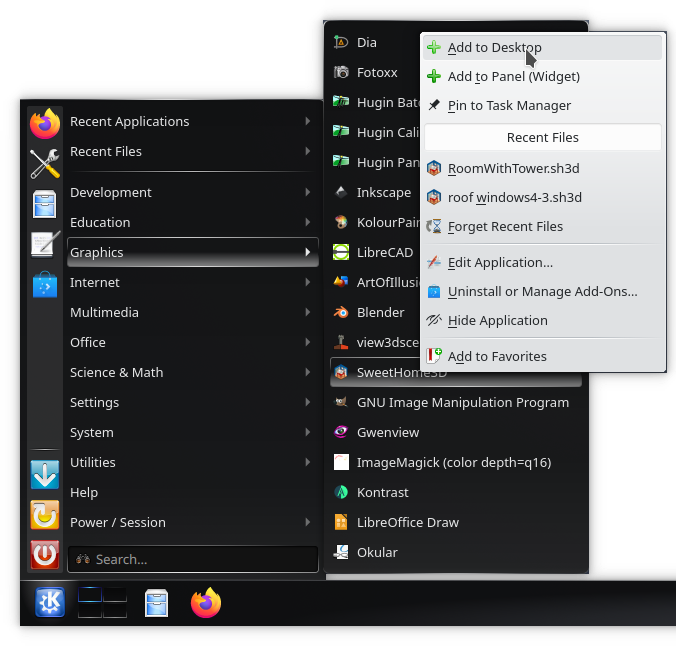
2.6 Create desktop shortcut for SH3D
2.6.1 Click Start -> Graphics;
2.6.2 Right-click on SweetHome3D entry and
2.6.3 choose +Add to Desktop
Will generate a desktop file.
Something like this:
Image

This is under KDE with Dolphin. I like more Konqueror or Krusader as file manager but...
For other DE and file managers you have to discover the specific ways.
A computer program does what you tell it to do, not what you want it to do. Murphy's Law
When all else fails, read the instructions. Murphy's Law
If you don't like "AS IS", DIY. Dorin's law
User avatar
dorin
Posts: 824
Joined: Thu Apr 24, 2014 9:14 am
Country: Vatra Dornei, Suceava, Romania

Re: SH3D & Tools linux install & config -my way

Post by dorin »

@Keet
Any idea how to fix that?
Nope. I've tried in a classic way.
You've right: it open the application but without the file.
BUT wile
I don't edit everyday a furniture(texture) library I don't see the usage.
When I will have more time I'll see if & how to pass a file name to this applications.
Until then (for me) don't hurt to import desired library.
Or maybe you will find a bash solution and share with us.

PS Probably I've upset somebody again. Sorry!
A computer program does what you tell it to do, not what you want it to do. Murphy's Law
When all else fails, read the instructions. Murphy's Law
If you don't like "AS IS", DIY. Dorin's law
User avatar
Keet
Posts: 1807
Joined: Fri Apr 08, 2022 7:13 am
Country: Netherlands

Re: SH3D & Tools linux install & config -my way

Post by Keet »

Yep, I tried all classic ways too.

The strange thing is this works directly in the terminal:

Code: Select all

java -jar /[path-to-editor]/FurnitureLibraryEditor-1.30.jar -open "/[my-SH3D-path]/furniture libraries/mylibrary.sh3f"
But when I translate that into this .sh script:

Code: Select all

#!/bin/sh
java -jar /[path-to-editor]/FurnitureLibraryEditor-1.30.jar -open $0
It does open the editor but does not load the passed library file. That's something I can not explain. The $0 parameter should pass the file complete with path so I see no difference with putting it directly into the terminal.
Dodecagon.nl
1300+ 3D models, manuals, and projects
Post Reply New Topic

Who is online

Users browsing this forum: No registered users and 1 guest